Fiji - BDV Navigation and QuPath project import
Note
You will need a mouse, since navigating with a trackpad can be frustrating!
Start Fiji, or launch the ABBA application if you used the installer, then start the ABBA plugin (type ABBA in Fiji’s search bar or go to Plugins › BIOP › Atlas › ABBA - ABBA Start). You will then need to choose an atlas (this documentation uses the Allen adult mouse brain atlas) and select between three slicing orientations: coronal, sagittal, or horizontal. The examples provided use the coronal orientation, as it is the most common, but ABBA functions similarly in all orientations.
Atlas display options
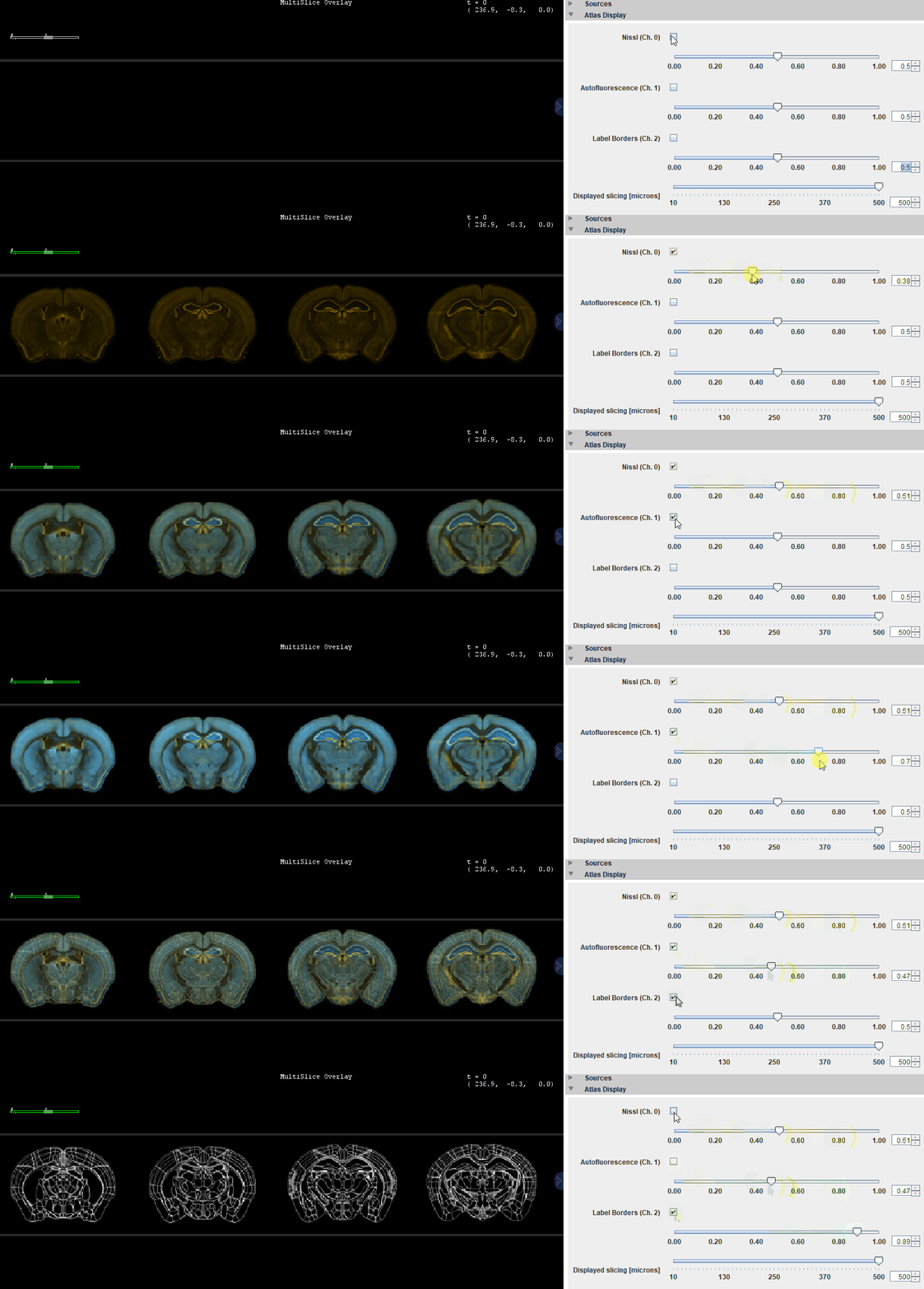
When ABBA starts, you will see the atlas dataset, sliced regularly along the Z-axis. The dataset consists of a 3-channel image, which in the case of the Allen Brain Atlas CCFv3, includes:
Nissl (Ch. 0)Ara (Ch. 1)Label Borders (Ch. 2)
You can toggle these channels on or off using checkboxes and adjust their visibility using sliders to emphasize or de-emphasize each one.
Importing a QuPath Project into ABBA
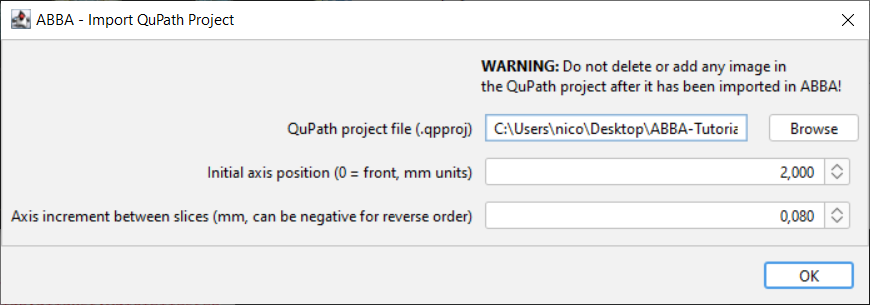
Once you’re comfortable with the navigation, you can proceed to import a QuPath project. In the ABBA window menu, click Import > ABBA - Import QuPath Project:

Next, select your project file, specify the initial position of the first slice, and enter the approximate slice spacing in millimeters (the demo dataset uses 80-micron spacing). These values are just starting estimates and will be fine-tuned later.
After this, a second window will appear with advanced import options. The default settings (as shown below) should work for most cases.

The plane origin convention doesn’t matter for most users.
Warning
If your dataset contains 16-bit RGB channels (as is the case for some CZI files), be sure to check the Split RGB channels option.
The initial import process may take up to a minute. Once the project is loaded, you should see an image similar to this:

Other import methods
Importing the Current ImageJ Window
You can also import the current ImageJ window into ABBA, provided the window is in focus. Make sure that the pixel size is set correctly, ideally in millimeters.
Warning
There is currently a bug that prevents reopening ABBA state files created using this method.
Direct file import of a file
While importing a file that isn’t part of a QuPath project can make downstream processes more difficult, it is possible. However, proceed with this option only if you are sure it won’t affect your workflow.
Importing from BigDataViewer Playground
You can also drag and drop sources directly from the BigDataViewer Playground’s tree view into the BigDataViewer window in ABBA.